Updated:

Searchable PDF on iPhone

Make a scanned PDF searchable on iPhone with an OCR text layer. Find words, select recognized text, and keep the original page image.

Direct answer: Open Find in your PDF reader and search for a word you can see. If nothing matches, the scan may be image-only; run OCR to add a searchable text layer first.
Download on the App Store

Free to download. Apple shows current trial eligibility and plan access before confirmation. See pricing details.

How to search text inside a scanned PDF on iPhone

Open the PDF in Files, Preview, or another reader and choose its Find or search action. Search for a distinctive word you can see on the page. If the reader finds it, the PDF already contains searchable text. If it returns no result, the file may be a stack of page images without a text layer.

A searchable PDF keeps the scanned page image and adds recognized text behind it. Readers that expose this layer can find words, select text, and copy recognized content. ScanLens creates the layer on iPhone with on-device OCR; exact search and selection behavior still depends on the reader you use.

For broader text extraction from any image or photo (not just PDF), see the OCR app for iPhone. For the full scan-to-PDF capture workflow, start with the PDF scanner app. Common next steps after creating a searchable PDF: translate the reviewed OCR text, merge multiple PDFs on iPhone, split a long PDF, or sign a contract.

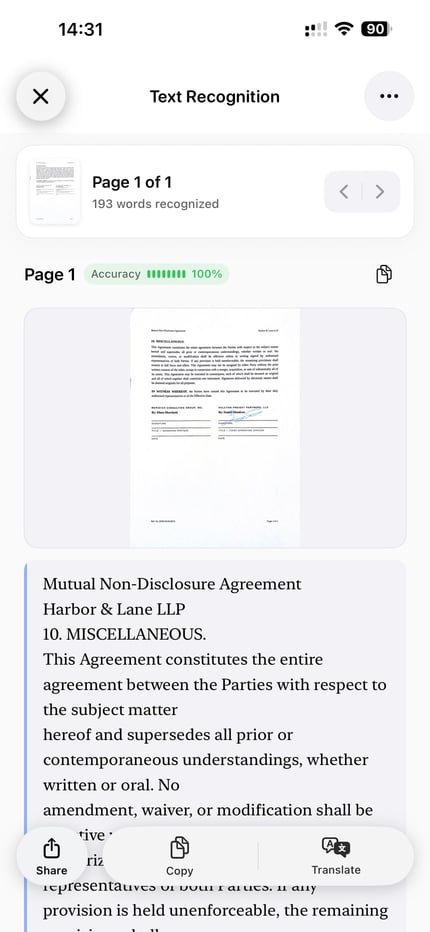
ScanLens showing a scanned page with recognized text ready to review and copy 01

Review the OCR text

Check names, numbers, dates, and important wording against the scanned page.
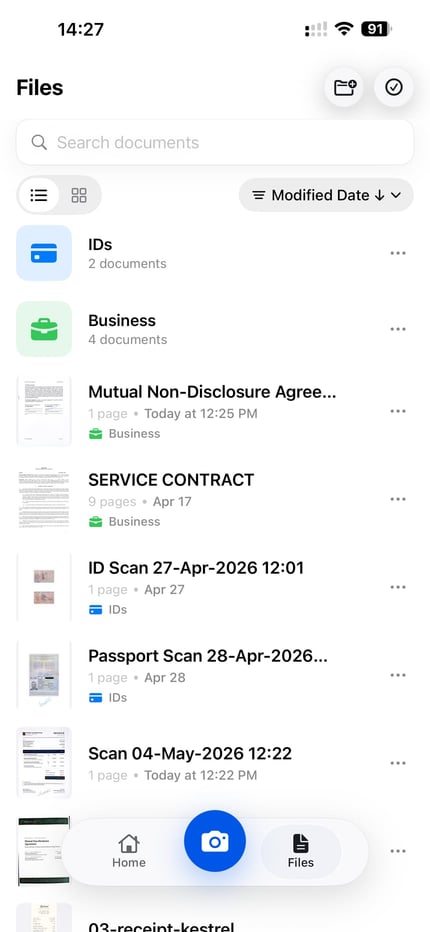
The ScanLens files screen with a search field above scanned documents 02

Find the document later

Search corrected OCR text in ScanLens or use the text layer in a compatible PDF reader. Correcting that text is one of the edits covered in editing a scanned document.

What the invisible text layer actually is

Picture a searchable PDF as two parts on one page. You see the scanned page image. The file also contains a recognized text layer mapped to the words on that page. A compatible reader can search or select the recognized text while continuing to display the scan.

ScanLens creates this layer during export after running OCR on the iPhone. The layer becomes part of the PDF, so it remains with the file when you save, move, or share it. Search, selection, and indexing controls still depend on the reader and destination.

How to tell whether a scanned PDF is searchable

The two files can look identical on screen, which is exactly why people get caught out. A flat scanned PDF is image-only: a stack of page pictures with no text inside. You cannot search it or select a sentence, and a phone or desktop that indexes your files finds it only by filename, never by what is written on the page. This is what you get from most basic scan apps, the iOS Camera document scan, or a photocopier's "scan to PDF" with OCR off.

An OCR'd searchable PDF looks the same but carries the invisible text layer described above. Search finds words inside it, you can select and copy, and the operating system can index its full contents. The visual page is unchanged; the difference is entirely in what the file can do.

To tell which you are holding, open the PDF and try to select a word — drag across a line, or long-press. If individual words highlight, there is a text layer and the file is searchable. If the whole page selects as one block, or nothing selects, it is a flat image-only scan. The other quick test is search: open Find and look for a word you can plainly see on the page. A flat scan returns no matches. Running the page through ScanLens adds the layer and both tests start passing.

How to make a PDF searchable on iPhone

Recognize the page text

ScanLens uses Apple's Vision framework for on-device text recognition. The OCR layer can recognize words, numbers, and document structure across 14 languages while keeping processing on your iPhone.

Place text behind the page image

Recognized text is positioned precisely behind the scanned image. Each word's location matches its visual position exactly. When you select text, the highlight covers the corresponding image area.

Keep the text inside the PDF

The OCR text layer is embedded in the PDF structure behind the page image. Readers that support text selection and search can use that layer without changing how the scanned page looks.

Process the document on iPhone

OCR recognition and searchable PDF creation run on the iPhone without uploading the document to ScanLens for processing. Cloud backup and export use a network connection when you select those destinations.

Why searchable PDFs are easier to use

Find a word without reading every page

Use the reader’s Find action on iPhone or the usual search shortcut on a computer. Search can take you to a name, clause, invoice number, or date when the recognized text is correct.

Select and copy recognized text

A compatible reader can expose the embedded layer for selection and copying. Check the copied result against the page before using names, totals, account numbers, or legal wording.

Find documents by recognized content

ScanLens 2.0 can expose corrected OCR text to iPhone Spotlight for documents in its library. Search elsewhere depends on the storage provider, reader, indexing state, and device settings.

Keep the text with the file

The recognized layer is embedded in the exported PDF. It remains with the document when you save, move, or share it, although each destination decides how it indexes and exposes that text.

Give readers more text to work with

An OCR layer may make recognized text available to assistive technology, but OCR alone does not create a fully accessible PDF. Reading order, headings, tables, images, and recognition errors still need review.

Regular PDF vs searchable PDF

The page image stays the same. What changes is what you can do with the file after scanning: search, select, copy, index, and archive it properly.

Feature Regular Scanned PDF Searchable PDF
Visual appearance Scanned image Identical (unchanged)
Text search (Ctrl+F) Not available Full support
Text selection Not available Full support
Copy/paste text Not available Full support
OS search indexing Filename only Depends on storage, reader, and indexing
Screen reader support Page image without recognized text Recognized text may be exposed; structure still matters
File size Smaller Usually larger; exact change varies by document

The text layer adds data to the file, so a searchable PDF can be larger than the same image-only scan. The difference depends on the document, page count, recognized text, image settings, and export options.

Search searchable PDFs with ScanLens, Files, and Spotlight

The embedded text layer stays inside the exported PDF. Where you can search it next depends on whether you search inside ScanLens, inside a PDF reader, or across files indexed by iPhone and a storage provider.

ScanLens and iPhone Spotlight

ScanLens 2.0 can expose corrected OCR text to iPhone Spotlight for document discovery. Whether a result appears depends on the document, indexing state, device settings, and the search words used.

Find inside a PDF reader

Open the PDF and use the reader’s Find action to search the embedded layer. Apple Preview and other compatible readers can expose searchable text, but controls and selection behavior vary.

Files, iCloud Drive, and other destinations

Moving the PDF does not remove its text layer. Content search outside ScanLens depends on the destination’s indexing, the selected PDF reader, and the settings on each device.

Supported languages for searchable PDFs

For multilingual filing and document archives, language support matters as much as OCR speed. The current coverage below is grouped by writing family.

Language Group Languages
Western European English, German, French, Spanish, Italian, Portuguese, Dutch
Eastern European Polish, Ukrainian, Russian
Asian Chinese (Simplified), Japanese, Korean
Middle Eastern Arabic

Select the source language that best matches the document. Mixed-language pages, small type, decorative fonts, and unusual layouts can produce more recognition errors, so review important output against the scan.

When to make a scanned PDF searchable on iPhone

Contracts and agreements

Search for a party name, renewal date, notice period, or clause instead of opening pages one by one. Compare important wording with the page image before relying on the OCR result.

Receipts and invoices

Recognized merchant names, dates, and totals can make a receipt archive easier to search. Keep the original image and verify financial values rather than treating OCR as bookkeeping.

Research notes and printed references

Search for a term or passage in material you are allowed to scan. Check quotations, page numbers, and citations against the source before reuse.

Personal and medical records

Search for a provider, date, or reference number in records you store for yourself. Protect sensitive files and verify medical details against the original document.

Long-term paper archives

Add text to old records while preserving the scanned page image. Faded paper, handwriting, stains, and unusual typefaces require more review.

Frequently asked questions about searchable PDFs

What is a searchable PDF?

A searchable PDF contains an invisible text layer created by OCR (Optical Character Recognition). The document looks like a normal scan, but you can use Ctrl+F to find text, select and copy content, and search across your document library using operating system search.

Does searchable PDF change how the document looks?

No, the visual appearance remains identical to a regular scanned PDF. The OCR text layer is completely invisible—positioned precisely behind the scanned image. You only notice it when searching, selecting, or copying text.

Which languages are supported for searchable PDFs?

ScanLens OCR supports 14 languages: English, German, French, Spanish, Italian, Portuguese, Dutch, Polish, Ukrainian, Russian, Chinese (Simplified), Japanese, Korean, and Arabic. Select the source language that best matches the document and review important recognized text against the page image.

Can I search text in any PDF reader?

Searchable PDFs use a standard embedded text layer. PDF readers that expose that layer can usually search and select it, including Apple Preview and Adobe Acrobat. Exact search and selection behavior can vary by reader.

How much larger are searchable PDFs?

A searchable PDF can be larger than the same image-only scan because it also stores recognized text and its position on the page. The exact difference varies by document, page count, image settings, recognized text, and export options.

How can I tell if a PDF I already have is searchable?

Open the PDF and try to select a word — drag across a line or long-press a word. If individual words highlight, the file has a text layer and is searchable. If the whole page selects as a single block, or nothing selects, it is a flat image-only scan that has not been through OCR. The other quick test is to open Find and search for a word you can plainly see on the page: a flat scan returns no matches. Running the page through ScanLens adds the layer so both tests start passing.

Does the iPhone search inside a searchable PDF?

ScanLens 2.0 can expose corrected OCR text to iPhone Spotlight. Whether a file appears depends on where it is stored, indexing state, device settings, and the search surface. The embedded text layer remains part of the exported PDF when the file is moved or synced.

Can confidential documents be made searchable without uploading them?

Yes. OCR recognition and searchable PDF creation run on the iPhone without uploading the document to ScanLens for processing. A file leaves the selected storage location when you share it, back it up, or export it to a cloud service.

Can I make a PDF searchable for free?

Searchable PDF export belongs to the paid feature set — the pricing page lists the plans. Worth knowing what is free anyway: recognition runs on your scans in the background, so searching inside your own library already works without unlocking anything. The paid part is embedding that text layer into a file you send elsewhere, so the recipient can search it too.

Create a searchable PDF on iPhone with ScanLens

Scan or import a document, choose the OCR language, review important recognized text, and export a PDF with an embedded searchable text layer.

Download on the App Store
