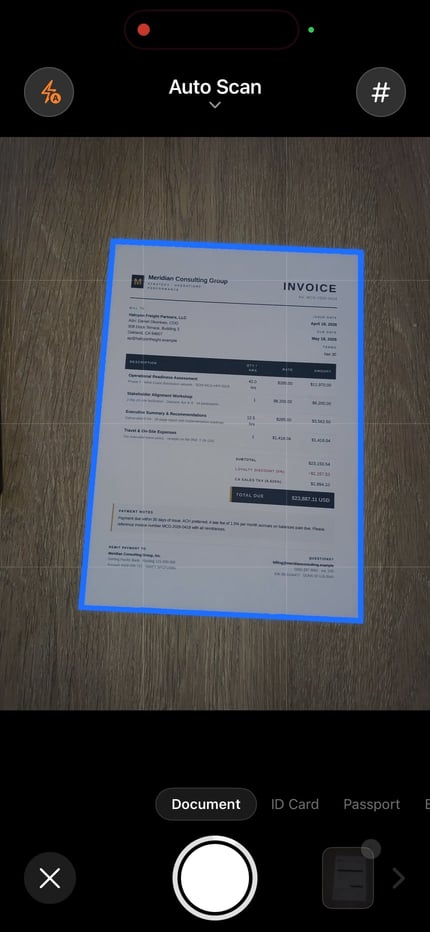
Capture or import the page
Fill the frame, keep the page sharp, and correct the edges before recognition.
Updated:
Scan paper, photos, screenshots, or PDFs into editable text on iPhone. Review the OCR result, then copy, translate, export, or keep it as a searchable PDF.
Free to download. Apple shows current trial eligibility and plan access before confirmation. See pricing details.
OCR (Optical Character Recognition) converts an image of text — a photo of a page, a scanned document, or a screenshot — into machine-readable text you can search, copy, edit, translate, and reuse. An OCR text scanner for iPhone runs recognition as part of the mobile document workflow. ScanLens performs core OCR on the iPhone, then lets you correct recognized text and use it in searchable PDFs or supported text actions.
This page covers OCR text extraction specifically. For the full capture-and-save workflow, start with the document scanner for iPhone. For OCR inside a PDF file (an invisible text layer), see the searchable PDF page. For scanner apps compared, see the PDF scanner app overview.
When you scan or import a document, ScanLens processes the following OCR workflow on the iPhone:
The page is not uploaded to ScanLens for OCR recognition. Optional cloud export and backup use the destination service you select.
Fill the frame, keep the page sharp, and correct the edges before recognition.
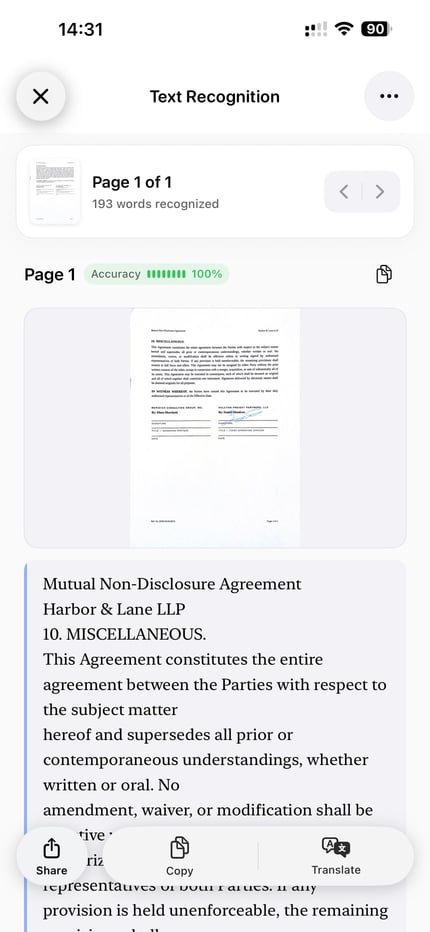
Compare important names, numbers, and dates with the original page and correct errors.
Copy, translate, export as TXT, or create a PDF with an embedded text layer.
ScanLens uses Apple’s Vision text-recognition APIs on the iPhone. The app sends the prepared page image to Vision, receives recognized words and their positions, and uses that result for copy, edit, translate, TXT export, and searchable PDF actions.
Recognition time and quality vary with the iPhone model, page count, image size, language, layout, focus, and lighting. ScanLens therefore does not publish a fixed speed or accuracy promise for every page.
Before OCR, ScanLens straightens the photographed page and prepares the image for reading. After recognition, you can compare the result with the scan and correct important errors — see how to edit a scanned document for what else can and cannot be changed on a scanned page. If you export a searchable PDF, ScanLens places the recognized text behind the page image so compatible readers can search and select it. The searchable PDF guide explains that file format in more detail.
OCR recognition runs on the iPhone, so the page does not need to be uploaded to ScanLens for recognition. This also allows OCR to work without an internet connection. Cloud export, cloud backup, purchases, analytics, and diagnostics remain separate network-dependent services where applicable.
The current production fact is exactly 14 OCR languages:
Select the source language that matches the page. For mixed-language documents, run representative tests and check important names, numbers, and terminology against the original image rather than assuming automatic language handling.
The language count is not a promise of uniform accuracy. Clean printed text is generally easier than small, blurred, decorative, connected, or handwritten text. CJK scripts need enough resolution for detailed characters; Arabic joins and changes letter forms; and handwriting varies by writer and script. Use a sharp, well-lit capture and proofread consequential output in every language.
"OCR" gets used for three different things on iPhone. They overlap, but each fits a distinct job.
Live Text recognizes text inside Photos, the Camera viewfinder, and screenshots. Tap the text-selection glyph and copy the words. It is free, instant, and on every recent iPhone — the right tool for a phone number off a flyer, a Wi-Fi password from a card, or a few lines from a screenshot. Its limits show with documents: one image at a time, no multi-page batching, no searchable PDF, and no deskew or cleanup of a photographed page.
This is what ScanLens does. OCR is one stage of a document workflow: capture or import a page, improve the image, recognize the text, correct important errors, and keep that text with the document as a searchable PDF layer or use the supported copy, translate, edit, and export actions. It is the right tool when the text belongs to a document you want to keep, search, or send.
Some apps do nothing but OCR: paste an image, get text back. Many are web-backed, uploading the image to a server to recognize it. Convenient for a single odd image, but they add a privacy cost and an internet dependency an on-device, document-first tool avoids. If the content is sensitive, this is the category to be cautious with.
Rule of thumb: Live Text for a quick snippet, an in-app OCR feature when the text belongs to a document you are keeping. To pull text from a single photo specifically, the scan text from a photo walkthrough covers the fastest route.
ScanLens performs best on clean, well-lit printed documents and remains useful for many handwritten notes and mixed-layout pages. OCR quality depends on the source material, and when a scan comes back with errors the cause is almost always one of four factors — three of which are under your control at capture time.
Steady the phone, fill the frame, and find even light, and most printed pages recognize cleanly on the first try. Faded, creased, or stained originals stay the hardest cases for any scanner.
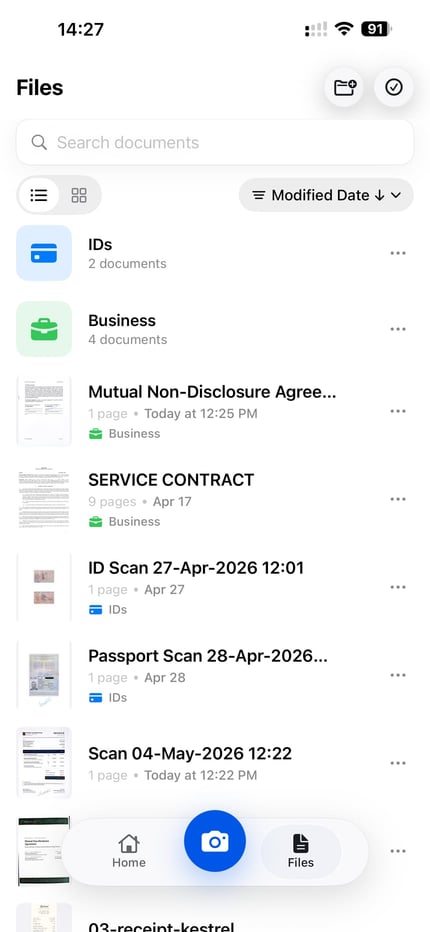
Once ScanLens extracts text from your documents, you can:
OCR (Optical Character Recognition) converts images of text into machine-readable text. ScanLens analyzes the page layout, identifies text regions, and turns them into searchable, selectable text that you can reuse in PDFs, notes, and other documents.
ScanLens OCR supports exactly 14 languages: English, Arabic, Dutch, French, German, Italian, Japanese, Korean, Polish, Portuguese, Russian, Simplified Chinese, Spanish, and Ukrainian. Select the source language that matches the page and review consequential output against the scan.
Handwriting recognition is narrower and more variable than printed-text OCR. Results depend on script, writing style, lighting, and image quality, so test representative pages and review important output against the original scan.
Yes. Searchable PDF export embeds recognized text behind the page image. Standard PDF readers that expose the text layer can search and select it; recognition errors remain possible, so review important names, dates, and numbers.
Yes. OCR recognition runs on the iPhone and does not require an upload to ScanLens. A network connection is still used when you choose cloud export, cloud backup, purchases, or other online services.
ScanLens uses Apple's Vision text-recognition APIs on the iPhone. The recognized strings and their page positions are used for copyable text and the text layer in searchable PDF export. The document is not uploaded to ScanLens for OCR recognition.
Live Text is excellent for grabbing a quick snippet from a single photo or screenshot, and it is built into every recent iPhone. A scanner app uses OCR as part of a document workflow: it deskews and enhances the page, recognizes text across a whole multi-page document, and keeps that text attached to the file as a searchable PDF layer or as copyable text. Use Live Text for a phone number off a flyer; use an in-app OCR feature when the text belongs to a document you want to search, archive, or send.
Recognition quality depends on the source language, font, layout, focus, lighting, resolution, and writing style. Clean printed text is generally easier than blurred, decorative, connected, or handwritten text. Review consequential output in every language against the page image.
Partly, and the split is deliberate. Text recognition runs on your scans in the background and searching inside your documents is free — you can find a contract by a phrase printed on its third page without unlocking anything. What belongs to the paid feature set is the OCR screen itself: reading the recognized text, copying it, translating it, and exporting it as TXT. The pricing page lists the current plans. Either way this is an iPhone app rather than desktop software, and recognition runs on the device.
Scan or import a page, select one of 14 OCR languages, review the recognized text, and use the supported copy, edit, translate, export, or searchable PDF actions. See pricing and plans for access details.
