Updated:

Sign PDF on iPhone

Open a PDF from email, Files, or cloud storage, add your signature, initials, and date, then send the signed file back from your iPhone.

Add signature Reuse initials No printing Send from iPhone
Best for: contracts, consent forms, approvals, and everyday PDFs that need a fast signature workflow without printer-scanner detours.
Download on the App Store
Draw once

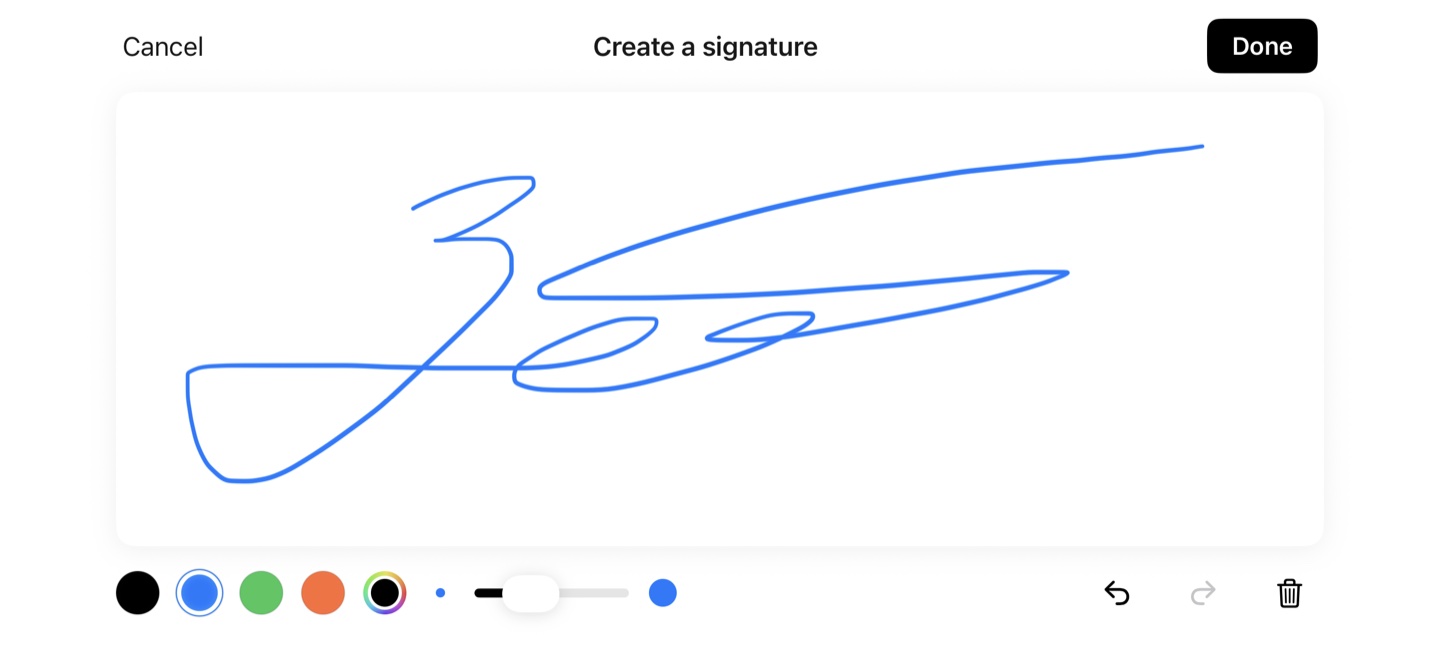
A full-screen pad for a real signature.

Turn the phone sideways and sign at a natural writing angle, not a cramped 9-pixel thumbnail. Pick a color, erase a stroke, and save the final signature to your on-device library.

How to sign a PDF on iPhone with Markup — and when a signing app helps

For one document, start with Apple’s built-in tools. Open the PDF in Preview or Files, use Markup or form filling to add a signature, position it, and save a copy. Apple’s iPhone guide covers that workflow.

ScanLens is useful when you sign often, need reusable signatures or initials, or want to scan paper and return a signed PDF without moving between apps. Signatures are stored on the iPhone and can be placed, resized, and rotated on the page.

ScanLens is a free app: open a PDF from Mail or Files, add your signature, export the signed copy, and send it back.

A signature placed on a PDF is a simple electronic signature. It is accepted for many routine agreements, but the requirement depends on the document and jurisdiction. Some transactions need identity verification, an audit trail, notarization, or a qualified electronic signature. See the e-signature legality guide before relying on a visual signature for a regulated or high-value document.

After signing, you can password-protect the PDF or make it smaller for email before sharing it.

How to sign a PDF on iPhone, step by step

1

Open the PDF

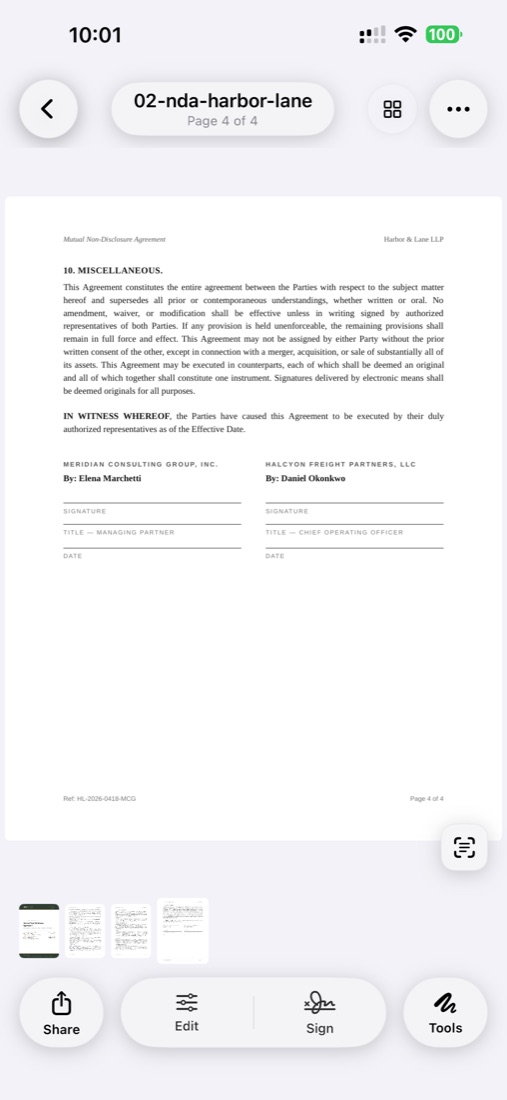
Open the file in ScanLens from Mail, Files, or a cloud-storage provider available through iOS. Read the document before adding a signature. If the urgent problem is a received attachment and no printer, use the shorter guide to sign a PDF without printing it.

2

Choose the signature tool

Select the signature tool from the annotation toolbar. If you've saved a signature before, it appears ready to place. Otherwise, you'll create a new one.

3

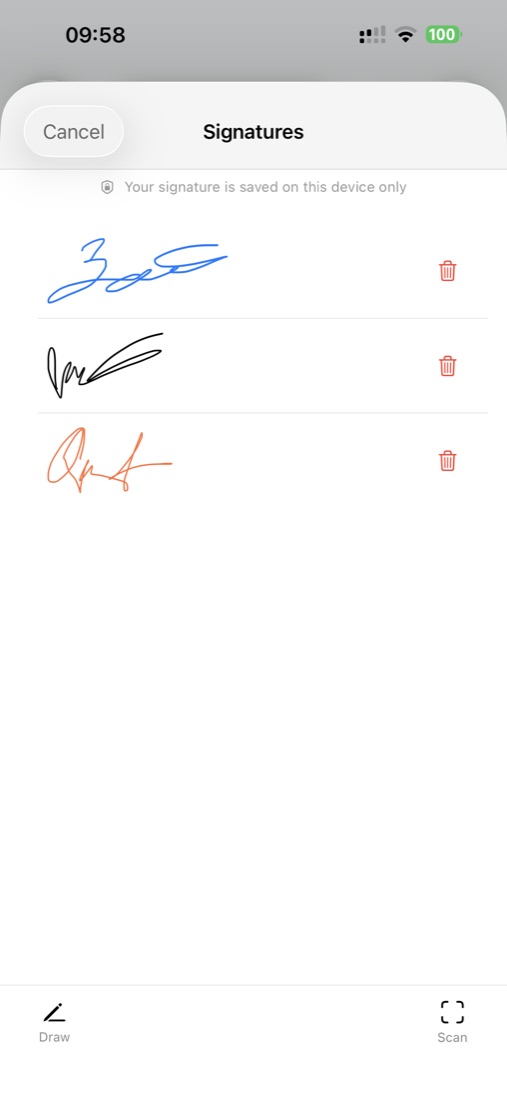
Draw or select a saved signature

Draw with your finger or choose a signature already stored in ScanLens.

4

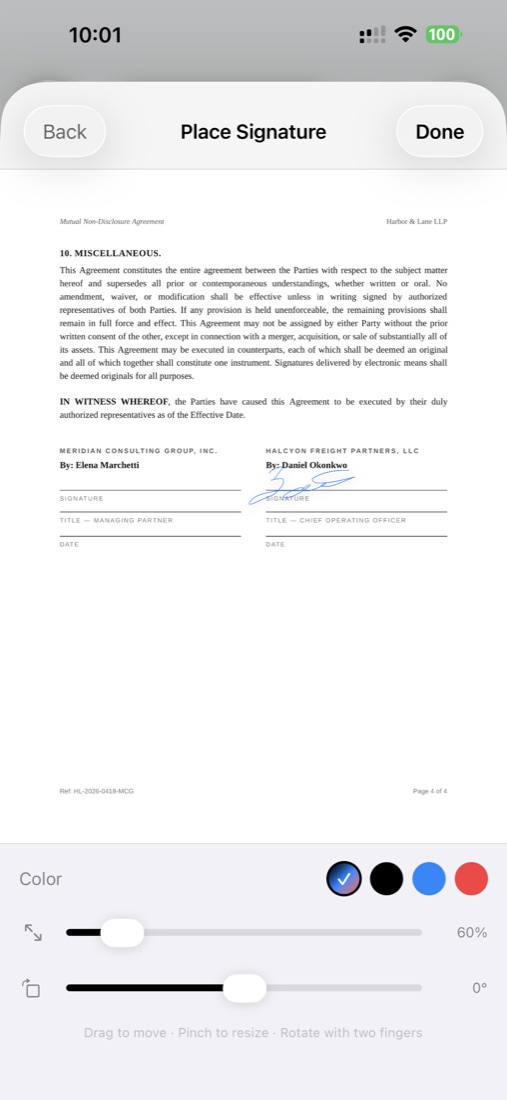
Place it on the signature line

Drag the signature into position, then resize or rotate it so it fits the field.

5

Add initials or a date if required

Check every signature field and page before exporting the document.

6

Export and send the signed PDF

Save a signed copy, reopen it to confirm the placement, then share it through Mail, AirDrop, Files, or your chosen cloud service.

Are iPhone PDF signatures legally binding?

Often, but not automatically. Electronic-signature laws generally allow many contracts to be signed electronically, while the required level of identity verification and evidence depends on the document, the parties, and the jurisdiction.

E-Signature Laws in the United States: ESIGN Act

The Electronic Signatures in Global and National Commerce Act (2000) gives e-signatures the same legal status as handwritten signatures for interstate and foreign commerce. State-level UETA (Uniform Electronic Transactions Act) laws provide additional backing in 47 states.

E-Signature Laws in the European Union: eIDAS

The eIDAS Regulation (2014) establishes a legal framework for electronic signatures across all EU member states. Simple electronic signatures (like those created on iPhone) are legally valid for most transactions, with higher-security "qualified" signatures for sensitive documents.

International E-Signature Recognition

Canada, Australia, the UK, Japan, China, India, and Brazil have all enacted e-signature laws. Most follow similar principles: electronic signatures are valid if the signer intended to sign and the signature can be associated with the document.

Documents That Still Need Ink Signatures

Some documents still require traditional signatures in many jurisdictions:

For most everyday documents—contracts, agreements, consent forms, authorizations—e-signatures are fully accepted and legally enforceable.

What Documents Can You Sign on iPhone

Contracts and Agreements

Employment contracts, NDAs, vendor agreements, freelance contracts—sign and return from anywhere. No more waiting to get to a printer. A deal can close the same day the contract arrives.

Medical Forms

Patient intake forms, consent forms, and insurance authorizations. Complete paperwork before your appointment instead of filling out forms in the waiting room. Healthcare providers can send forms digitally and receive signed versions instantly.

Real Estate Documents

Rental applications, lease agreements (many states allow e-signatures), and property disclosures. Real estate transactions move faster when signatures don't require in-person meetings or mail delays.

School Permission Forms

Field trip permissions, enrollment forms, report card acknowledgments. Parents can sign and return forms the same day instead of hoping the paper makes it home and back.

HR and Employment Documents

Offer letters, tax forms, policy acknowledgments, expense reports. HR teams can onboard remote employees without shipping documents back and forth.

Tips for Better iPhone PDF Signatures

Create a Clean Digital Signature on iPhone

Use finger input to draw signatures and annotations on iPhone, and zoom in for precision.

Save Your Signature for Reuse

Create your signature once and save it. This ensures consistency across all your signed documents and saves time. You can create multiple saved signatures—perhaps a formal version and casual initials.

Position the Signature Precisely

Zoom in on signature lines for precise placement. A signature that's clearly on the intended line looks more professional than one that's oddly positioned or overlapping other text.

Review the Signed PDF Before Sending

Scroll through the entire document after signing. Make sure all required signatures, dates, and initials are in place. Missing a signature on page 5 of 10 means starting the process over.

Frequently Asked Questions

Are iPhone e-signatures legally binding?

For many everyday agreements, electronic signatures are accepted, but requirements vary by document type, industry, and jurisdiction. ScanLens handles the practical PDF-signing workflow on iPhone. If you are dealing with regulated contracts or a workflow that requires identity verification, check the applicable rules or use a specialized signature platform.

How do I create a signature on iPhone?

Use finger input to draw signatures and annotations on iPhone, and zoom in for precision.

Can I sign documents without printing?

Yes. With ScanLens, you receive a PDF, add your signature directly on screen, and send it back—all without printing a single page. That saves time and paper, and there's no scanner needed to re-digitize the signed copy.

Can I add dates and initials to PDFs?

Yes, ScanLens supports adding dates, initials, and text annotations alongside signatures. You can position these elements anywhere on the document, making it easy to complete forms that require multiple sign-off points on different pages.

Is my signature stored securely?

Saved signatures stay on your iPhone and are protected by your device security settings. They are only shared when you export or send a signed PDF.

Ready to Sign Documents on iPhone?

Download ScanLens and sign your first PDF on iPhone. Save a reusable signature, add dates and initials, and return the finished document without printing.

Download on the App Store