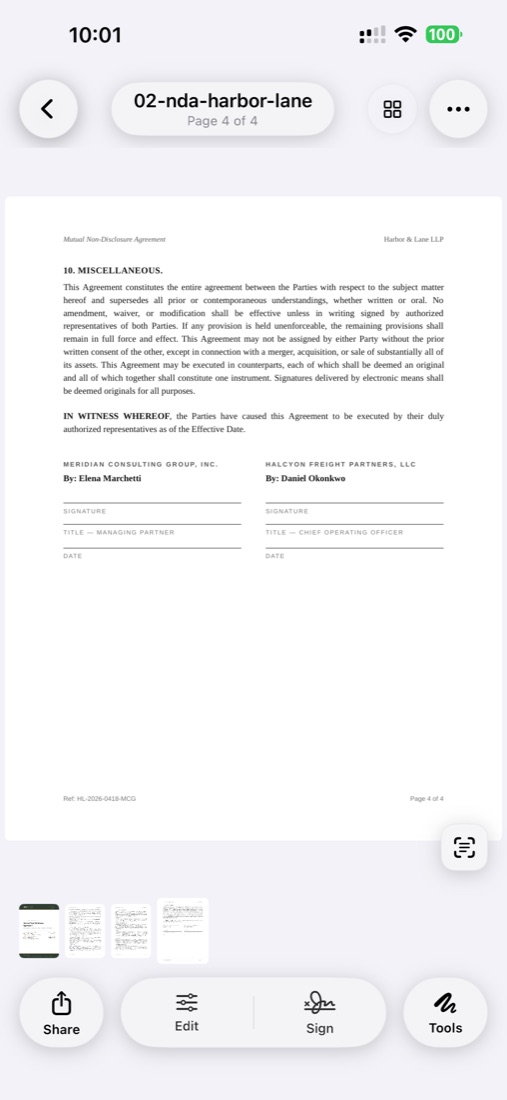
E-Signature App for iPhone

Sign contracts, agreements, and forms directly on your iPhone. Save reusable signatures, add initials and dates, and return finished PDFs without printing.

Reusable signatures Initials and dates No account required On-device flow
Best for: broader signature workflows where the job is not just placing one signature, but finishing and returning contracts, forms, and approvals from your iPhone.
Download on the App Store
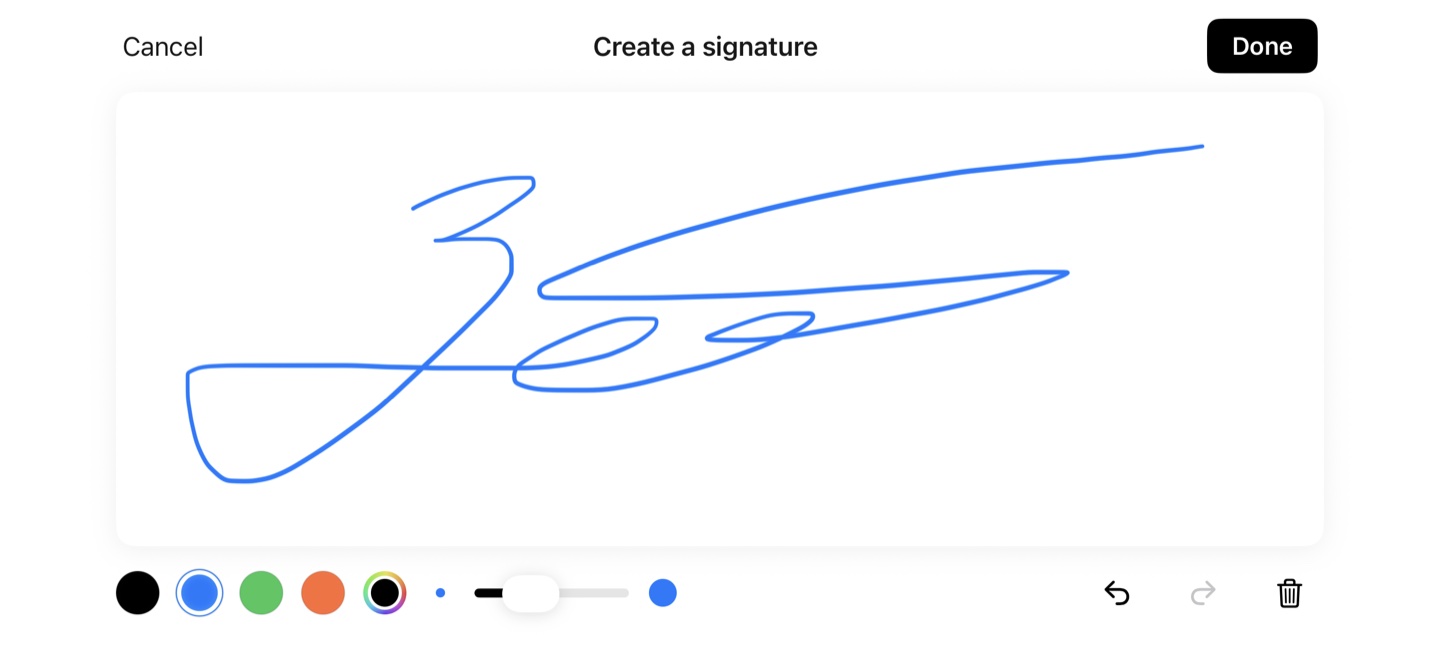
Full-screen pad

Sign the way you would on paper.

Rotate to landscape for a signature pad that uses the whole screen. Pick a color, choose a thickness, draw naturally, and save the result to your on-device library.

What is an e-signature app for iPhone, and is it legally binding?

An e-signature app for iPhone is a mobile application that lets you add a legally recognized electronic signature to a PDF, contract, or form directly on your iPhone — typically by drawing with a finger or Apple Pencil, typing a typed signature, or placing a saved signature image. In the US, electronic signatures have been legally binding for most contracts since the ESIGN Act of 2000 and the state-level Uniform Electronic Transactions Act (UETA). In the EU, eIDAS (Regulation 910/2014) recognizes three tiers of e-signature. The UK uses the Electronic Communications Act 2000. Narrow exceptions exist for wills, divorce filings, certain notarized documents, and a handful of regulated transactions — full details are in our guide to e-signature legality.

ScanLens is an e-signature app for iPhone and iPad with saved-signature placement, typed and drawn signatures, and on-device storage — signatures never leave your phone, no account required. Physical document signing is still the slow step in many business workflows. You get a contract by email, print it, sign it, scan it, and send it back. A good e-signature app removes that loop and turns your iPhone into the place where the document gets finished.

This page is the broader category overview: contracts, forms, NDAs, approvals, and signature workflows. If your intent is narrower and you simply need to sign a PDF on iPhone, the dedicated task page walks through that exact job.

Most signature workflows also include adjacent PDF tasks: reviewing and marking the document, protecting the signed copy, and sometimes compressing it before it gets emailed back.

How the e-signature tool works

1. Create your signature

Open any PDF in ScanLens, tap the signature tool, and draw your signature with your finger or Apple Pencil. You can re-draw until you are happy with it. Clear background, adjustable stroke width. The signature is saved locally on your iPhone for reuse.

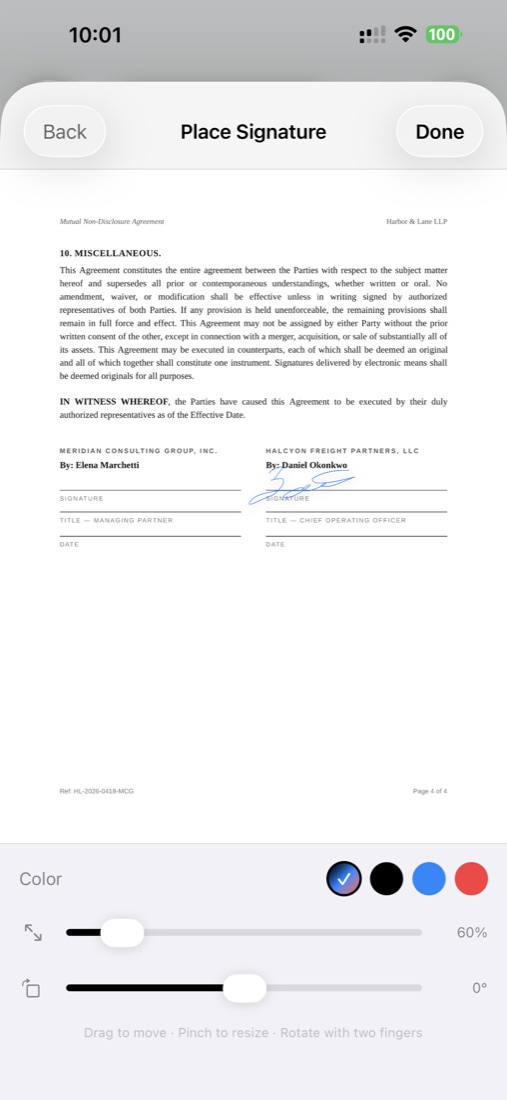
2. Place it on the document

Drag your saved signature onto the PDF where you want it. Resize by dragging the corners. Move by dragging the center. You can place multiple signatures on the same document — useful for contracts that need signatures on multiple pages or from multiple parties who all use ScanLens.

3. Add dates, initials, and text

Beyond the signature itself, you can add dates, initials, and text annotations to complete standard contract fields. All of these become part of the final PDF.

4. Save and share

The signed PDF is saved locally. From there you can email it, AirDrop it, save to Files, or sync it to iCloud, Google Drive, Dropbox, or OneDrive. The recipient opens a standard signed PDF — no account needed, no special reader.

Save multiple signatures for different purposes

Most people actually need a few different signatures:

ScanLens lets you save each one separately. When you open the signature tool, you see your saved signatures as a list and tap to pick the right one. You can delete any signature when you no longer want it stored on your device.

Are e-signatures legally binding?

In the US, EU, UK, Canada, Australia, and most other developed jurisdictions: yes, for most contracts. The legal basis differs by region but the bottom line is similar — electronic signatures are recognized as legally equivalent to handwritten signatures for routine business and personal transactions.

United States: ESIGN Act and UETA

The Electronic Signatures in Global and National Commerce Act (ESIGN), passed by the US Congress in 2000, establishes that electronic signatures have the same legal weight as ink signatures for most transactions that affect interstate or foreign commerce. Most US states have also adopted the Uniform Electronic Transactions Act (UETA), which provides similar recognition at the state level.

What this means in practice: for most business contracts, NDAs, sales agreements, service contracts, and consumer transactions, an e-signature is legally enforceable. The main exceptions are wills and testamentary trusts, certain family law documents (adoption, divorce in some states), court orders, some notice requirements, and specific documents that require notarization.

European Union: eIDAS

The eIDAS Regulation (Regulation EU 910/2014) creates a unified legal framework for electronic signatures across the European Union. It defines three tiers:

For the large majority of business and personal contracts, a Simple Electronic Signature is legally sufficient under eIDAS. If you specifically need AES or QES (for certain regulated industries or particular government submissions), you would use a dedicated platform designed for that purpose.

When you might still need wet ink

Even in jurisdictions that broadly recognize e-signatures, some document types traditionally still require physical signatures or notarization:

We are not lawyers and nothing on this page is legal advice. For documents where legal enforceability matters, consult a qualified attorney in your jurisdiction.

What people sign with ScanLens

Some common document types that work well with the e-signature tool:

Security and privacy

Signatures are personal. We treat them that way.

Stored locally on your device

Your saved signatures live on your iPhone in the app's secure storage. They are not uploaded to a ScanLens server and are not visible to us. Signature data is included in the app's backup to your own iCloud if you have iCloud Backup enabled — that is your backup, not ours.

On-device rendering

When you place a signature on a PDF, the rendering happens locally. The signed PDF is produced on your iPhone. You choose where it goes next — keeping it on your device, sharing it over AirDrop, emailing it, or syncing it to a cloud service you control.

App Lock protection

You can enable Face ID, Touch ID, or a passcode lock on the entire ScanLens app. This prevents someone who picks up your unlocked phone from opening ScanLens, accessing your saved signatures, or viewing signed documents.

PDF encryption for signed documents

For extra sensitive signed documents, you can apply AES-256 password protection to the PDF after signing. The recipient needs the password to open the document. See the password-protect PDF feature for details.

Frequently asked questions

Are e-signatures from ScanLens legally binding?

For many routine business and personal agreements, electronic signatures are accepted. The exact rule still depends on the document type, the parties involved, and the jurisdiction. ScanLens is built for standard PDF signing workflows on iPhone. If you need higher-assurance identity verification or are signing regulated documents, confirm the requirement before relying on any simple e-signature workflow.

Does ScanLens meet eIDAS requirements for advanced or qualified signatures?

ScanLens is designed for standard PDF signing workflows on iPhone, not for advanced or qualified trust-service-provider workflows. If a document specifically requires advanced or qualified electronic signatures, use a platform built for that level of identity verification and audit trail.

Can I create and save multiple signatures?

Yes. You can create multiple signatures — for example, a full-name signature for contracts, initials for initialing pages, and a more casual signature for informal documents. Each is saved on-device and can be reused on any PDF. You can also delete signatures when you no longer need them.

Where are my signatures stored?

Your saved signatures are stored locally on your iPhone in the app's secure storage. They are not uploaded to any cloud server by ScanLens and are not visible to us. If you enable iCloud sync for ScanLens documents, your signatures may sync across your own Apple devices through iCloud — that data stays within your iCloud account.

How do I start signing?

Download ScanLens, open any PDF, and place a reusable signature on the page. Full pricing — including a 7-day trial and a one-time lifetime option — lives on the pricing page.

Can the recipient verify the signature?

Simple electronic signatures like those produced by ScanLens are visual signatures placed on the PDF. The recipient sees the signed document and can accept it as they would a faxed or photocopied signed document. If you need cryptographic verification — where the signature is tied to a verified identity and tampering with the document invalidates the signature — you should use an Advanced Electronic Signature service. For the vast majority of signed documents people sign every day, visual signatures are legally sufficient and commonly accepted.

Start signing documents on your iPhone

Pull up any PDF, drop your signature, and send. Contracts finish in the time it takes to screenshot them.