Maximum quality
Uses less compression to preserve small text, stamps, handwriting, and image detail. Choose it when readability matters more than file size.
ScanLens is a PDF scanner app for iPhone that captures documents, detects page edges, creates multi-page PDFs, and runs OCR on-device in 14 languages. Scanning and document processing work offline; cloud backup and export are optional.

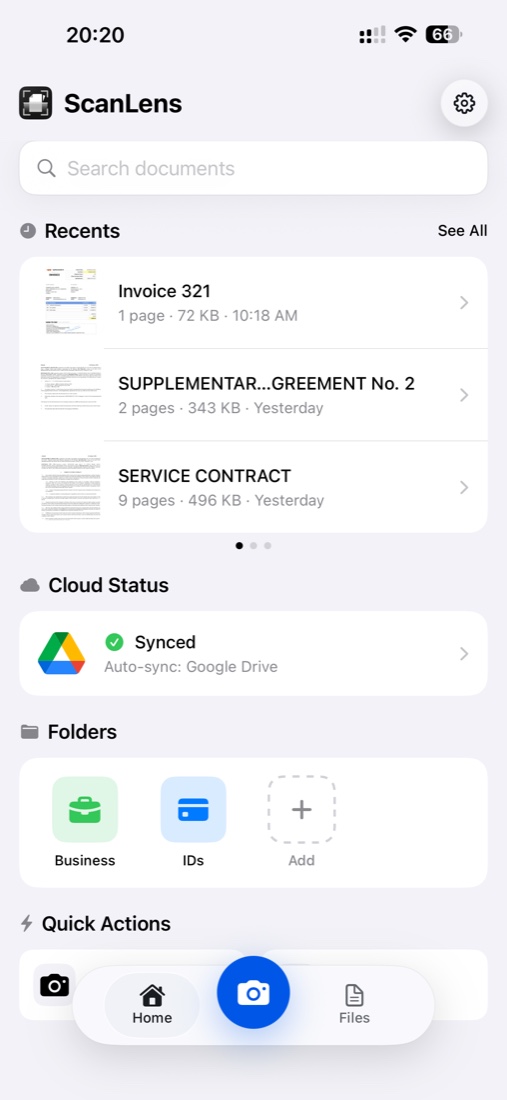
Scan the pages in one session, review them, then export a PDF. Before sending it, open the saved file to check that every page is present and readable.
Already have photos? Use photo to PDF. For lighting and camera position, see using your phone as a scanner.
Check these three parts of the result: the page boundary, the pages included in the PDF, and any recognized text you plan to use.
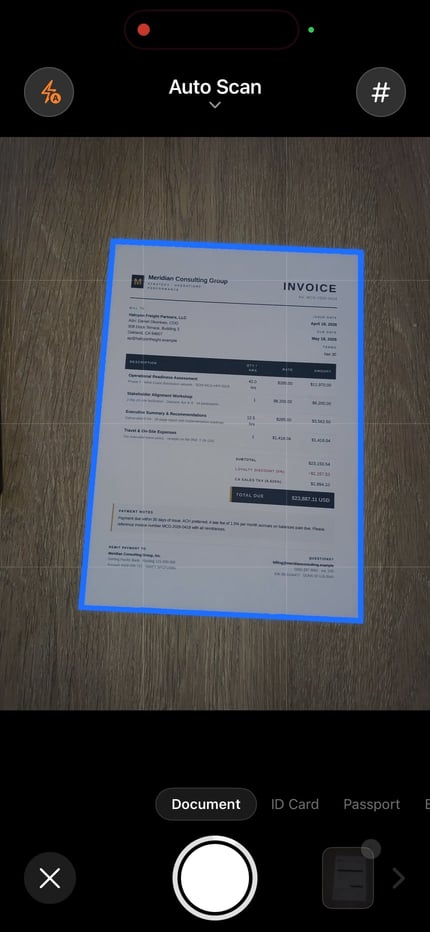
Adjust the detected corners if a margin or signature is cut off. Perspective correction helps straighten the page; it cannot restore missing content.
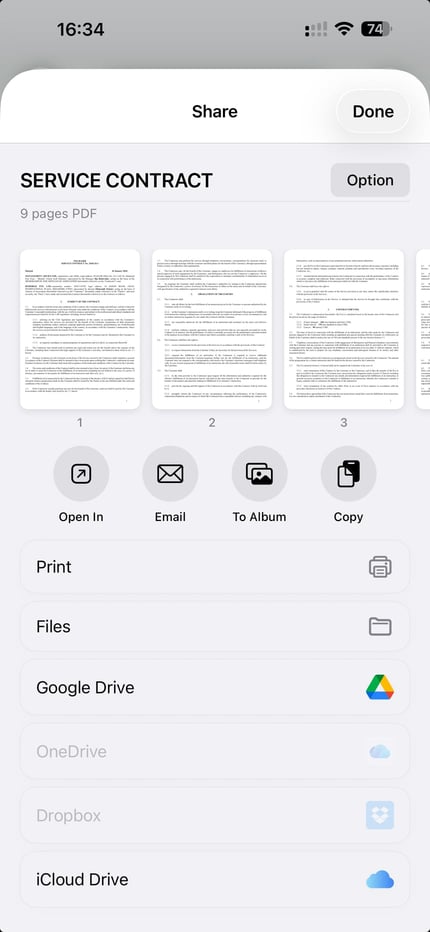
Review the page thumbnails before export. Remove accidental duplicates and put the pages in reading order.
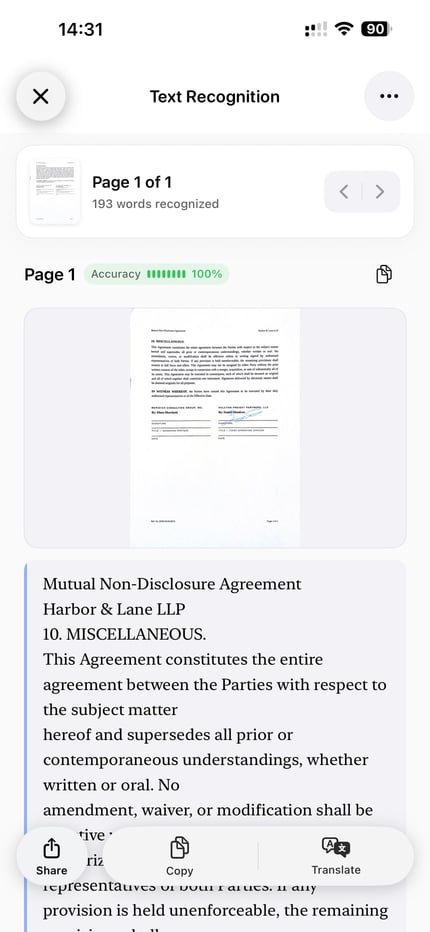
OCR provides recognized text to review and copy. Enable the text layer when exporting a searchable PDF, then test that file in a compatible reader.
Choose more detail for print and small type, or stronger compression when an email or upload has a file-size limit. Preview the result before exporting.
Uses less compression to preserve small text, stamps, handwriting, and image detail. Choose it when readability matters more than file size.
Balances readable text and image detail against a smaller file size. It is the practical starting point for most documents.
Uses stronger compression when attachment size matters. Check small print and signatures before sending the result.
To make the exported PDF searchable, enable its OCR text layer in the export options. Search inside the saved PDF to test a clear word from several pages. Finding a document in the ScanLens library does not verify its exported text layer.
When PDF export needs to recognize a page, it currently uses English. Test non-English words in the exported file before relying on search. The app’s separate text-recognition tool supports 14 languages.
Learn more on our dedicated searchable PDF guide or the OCR app page if you only need to extract and copy text.
Add password protection before sharing a sensitive PDF. Send the password through a separate channel and retain an accessible original where appropriate.
Scanning, OCR, compression, and signing run on your iPhone. Document content is not uploaded to ScanLens for processing; optional backup and export use the services you choose.
ScanLens does not analyze the content of scanned documents. Account, purchase, analytics, diagnostic, and other app data practices are described in the App Store privacy label and Privacy Policy.
Export a PDF through the iOS share sheet or save a copy to Files, iCloud Drive, Google Drive, Dropbox, or OneDrive. Availability depends on the services configured on your iPhone and your ScanLens plan.
Check the actual PDF attachment or saved copy for page count, order, legibility, and file size. The scan-and-email guide covers sending it through Mail, Gmail, or Outlook.
Yes. Apple documents scanning in Notes and Files, including automatic capture, adjusting corners, and adding more pages. These tools may cover a simple paper-to-PDF task.
Choose ScanLens when you need scan capture together with PDF compression, page tools, searchable export, or saved signatures. The iPhone scanner comparison explains the workflows.
Yes. Import the page photos, check their order and crop, then export them as a PDF. You do not need to photograph the paper again if the saved images are complete and readable.
Page tools can crop, rotate, reorder, or remove scanned pages, but a scan is still an image of the original. To rewrite its wording, extract and review the OCR text in an editor. See the PDF editing guide for page and annotation tools.
ScanLens supports multi-page documents with batch capture and page reordering. There is no fixed public page limit in the App Store listing; practical performance depends on the iPhone, page images, and available storage.
Core capture, edge detection, OCR, editing, compression, and PDF export work on the iPhone without a ScanLens account. Cloud backup, third-party cloud export, purchases, analytics, and diagnostics use the relevant network services as disclosed.
ScanLens is one, with the boundaries stated plainly. Scanning and importing are unlimited, no account and no email address are required, and edge detection, perspective correction, page filters, crop and rotate all work without unlocking anything — the output is a real multi-page PDF. Free exports carry a ScanLens mark, and the pricing page lists what the paid feature set adds. There is no separate desktop download: it is one iPhone app.
Capture documents, create multi-page and searchable PDFs, compress files, add signatures, and export from your iPhone.